
Connect Using Clever
Connect Using Clever
Do you use Clever?
You and your students can launch your magazine from within your Clever Teacher Page.
To get started, follow the instructions below, or share with your Clever administrator.
(Click for information on integrating with Google Classroom or another LMS.)
Step 1. Register your account.
Step 1. Register your account.
Go to platform.scholastic.com and sign in using your Scholastic account. If you don't have an account, follow the on-screen instructions to register, enter the access code from your Teacher's Guide, and retrieve your classroom password.
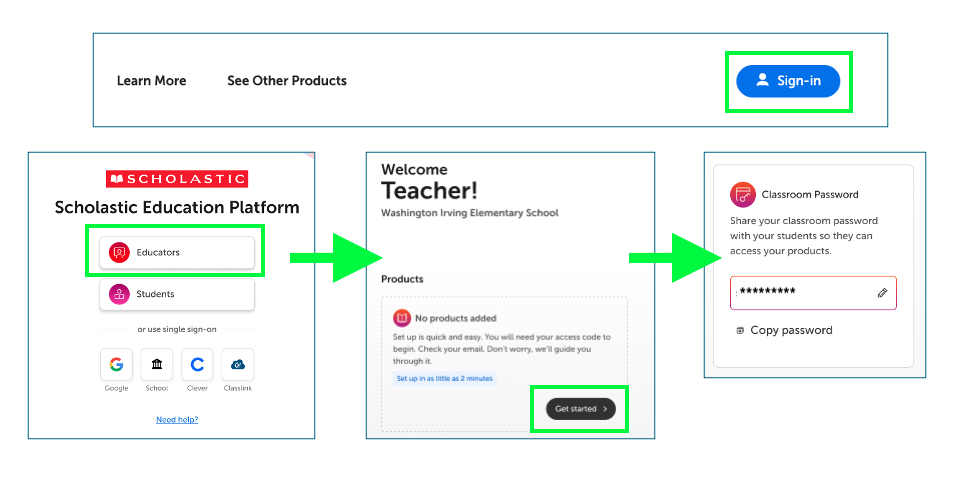
Step 2. Add a link to Clever
Step 2. Add a link to Clever
1. Log into Clever and select Pages from the left navigation menu, then choose My Teacher Pages. Open an existing Teacher Page or click Add to create a new one.
2. Click Add and select Link. Input a link to the Scholastic Education Platform, or to your magazine site's homepage. (You can even link directly to a specific article, if you'd prefer!)
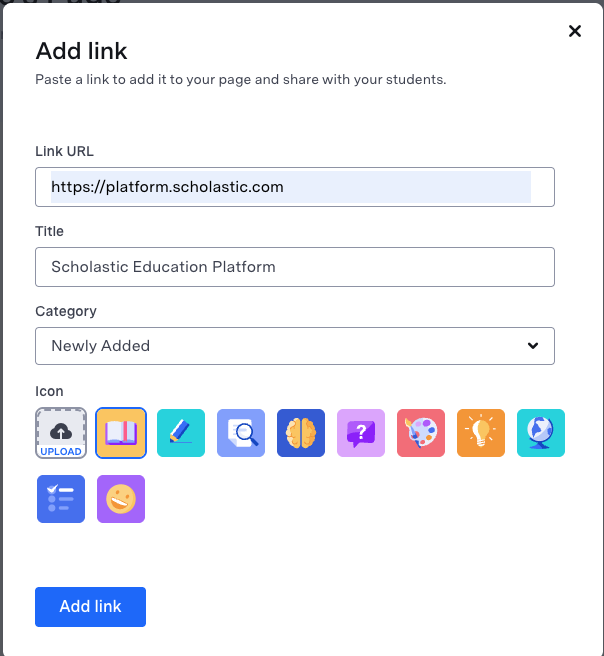
3. Under More Page Actions at the top of the page, click Share and select the classes or students who should have access to the page. Click Update or Save to publish the changes.
For more information on adding an external link to Clever, click here.
You're all set!
You're all set!
Students will now be able to log in using their shared classroom password when launching their Scholastic magazine from within Clever.
Questions?
Questions?
For additional questions about connecting using Clever, have your school's technical administrator contact Scholastic's Rostering and Onboarding team.
Please fill out the fields below.